Connect your company email (Microsoft 365, Google Workspace or other)
Send appointment reminders and other automatic emails from your own company address instead of the CaseMgmt address.
Last updated October 22, 2026
Who can do this: Admin
Before you start
- An app password for the mailbox you'll send from (not its normal password). For Microsoft 365, create one on the Microsoft Security page (mysignins.microsoft.com/security-info). For Gmail, use Google App Passwords (myaccount.google.com/apppasswords). The card links to both.
- Microsoft 365 only: SMTP AUTH (also called Authenticated SMTP) must be turned on for that mailbox in the Microsoft 365 admin center.
Steps
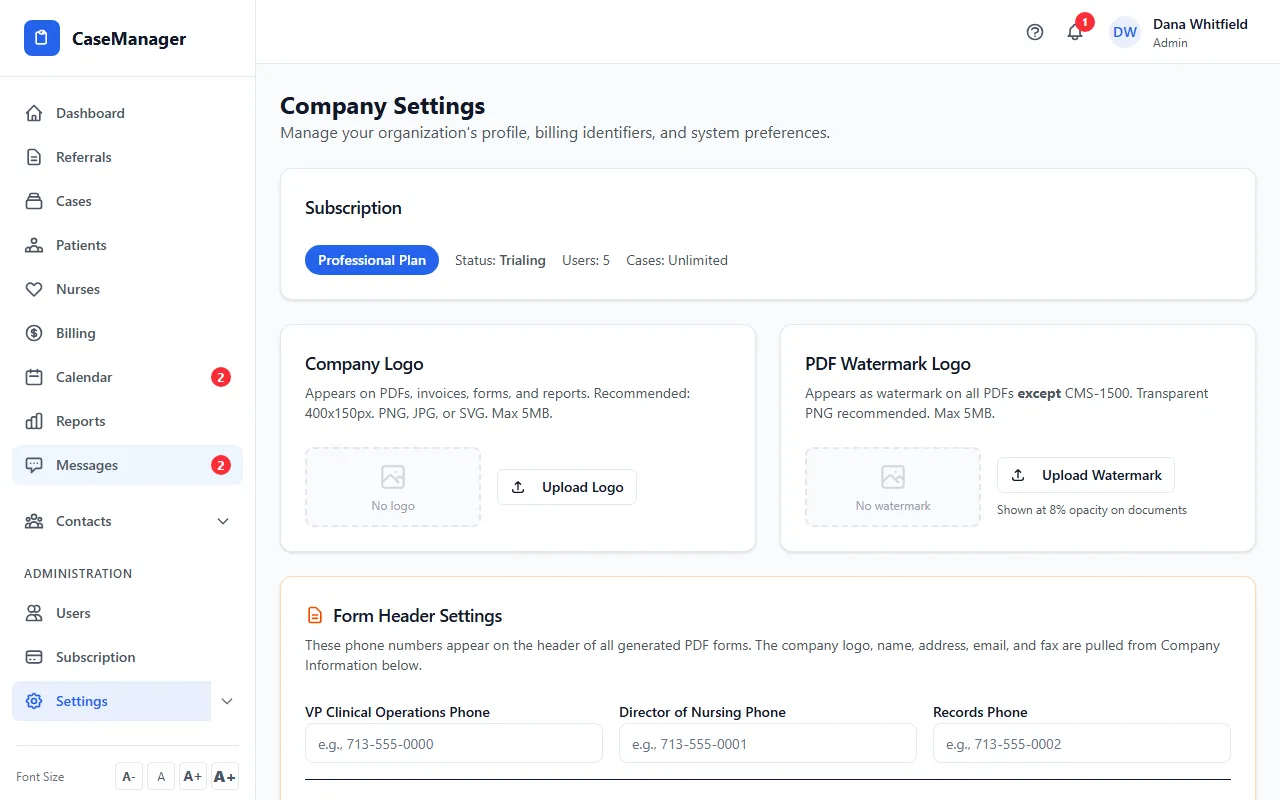
- Go to Administration > Settings and scroll to Email Configuration. Find the Company email box.
- Choose your Email provider: Microsoft 365 / Outlook, Gmail / Google Workspace or Other. The first two fill in the mail server, port and security for you.
- For Other, type your Mail server and set Port and Security (STARTTLS (587) or SSL (465)) the way your email provider tells you.
- Enter the Email address (login) and the App password. Add a Sender name, such as your company name.
- Click Save company email. You'll see “Saved. Use Send test email to confirm it works.”
- Click Send test email. It goes to the email address you sign in with, so check that inbox.
What the company email is for
It sends appointment reminders and other automatic emails. If it isn't set up, or stops working, those emails still go out: from the CaseMgmt address, with your company name, and replies go to your company's address.
Emails a person sends themselves from CaseMgmt, such as forms, documents to sign and records, use that person's own email. See Send email from your own address. If that person hasn't set up their own email, the company email is used instead.
Changing the password later
Once a password is saved, the App password box shows “Saved (leave blank to keep)”. Leave it empty to keep the saved password, or type a new one and click Save company email.
If your mail server rejects the login
A notice, “Your mail server rejected the company email login”, appears in the card with the date and time of the last rejection. Your reminders still go out from the CaseMgmt address meanwhile.
Check the app password, and for Microsoft 365 that Authenticated SMTP is on for the mailbox, then save. The notice clears after the next email goes out from your address.
If something goes wrong
- “The mail server rejected the email address or password. Use an app password (not your normal password). For Microsoft 365, SMTP AUTH must also be enabled for this mailbox in the Microsoft 365 admin center.”
- Create a new app password and enter it in App password. For Microsoft 365, ask whoever manages your Microsoft 365 to turn on SMTP AUTH for that mailbox. Then save and send the test again.
- “Could not connect to the mail server. Check the server name, port and security setting.”
- Check Mail server, Port and Security. Microsoft 365 is smtp.office365.com, port 587, STARTTLS. Gmail is smtp.gmail.com, port 587, STARTTLS.
- “Company email is not fully set up yet (server, email address and password are all required).”
- Fill in the mail server, email address and app password, save, and test again.
- Send test email is grayed out.
- Save an app password first. The test needs a saved password.
- Save company email is grayed out.
- Fill in Mail server and Email address (login).