Start this month's report
Use + New on a completed monthly report, progress report or office visit form to start the next one for the same patient.
Last updated October 22, 2026
Who can do this: Admin, Nurse Case Manager, Internal Case Manager
Before you start
- The patient needs one completed copy of the report first. Fill out the first one with Fill Out as usual.
Steps
- Open the patient and click the Forms tab.
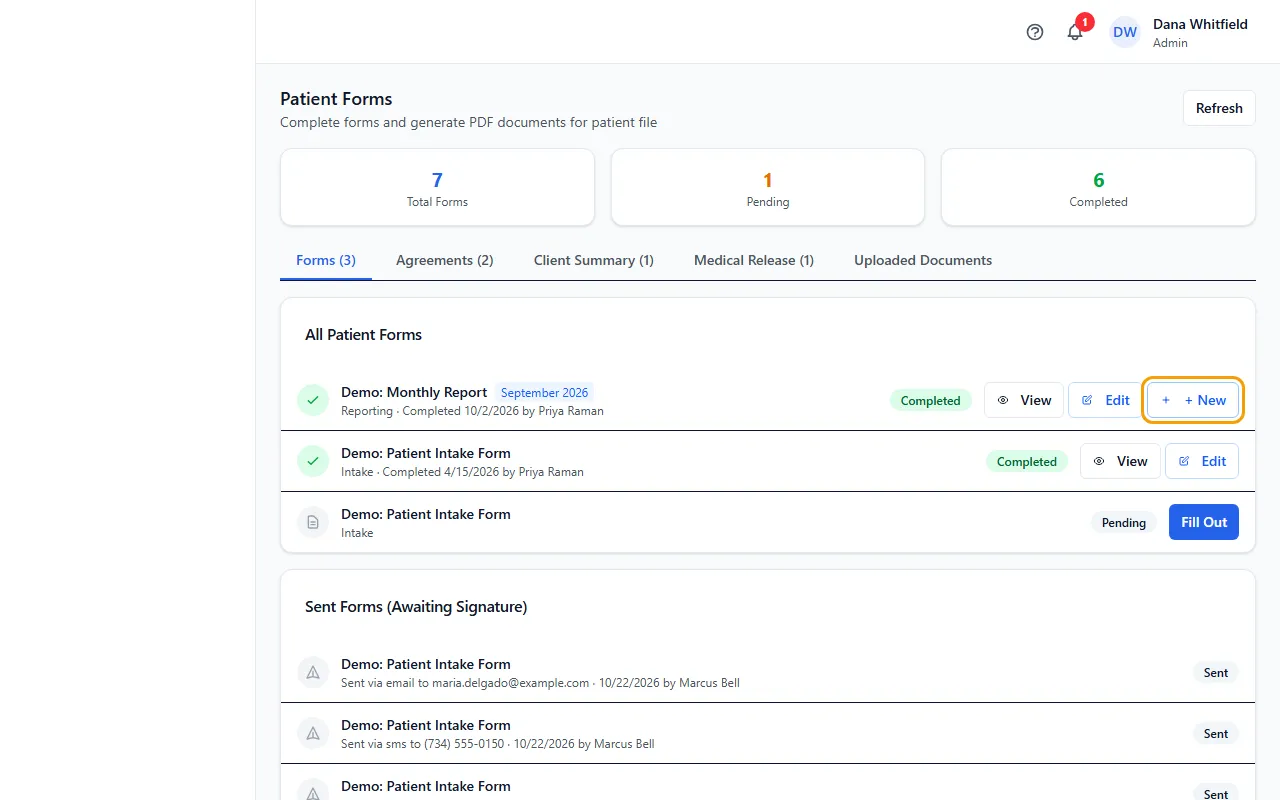
- Find the completed Monthly Report, Progress Report or Physician Office Visit form and click + New.
- A new copy is added to the list. Click Fill Out on it.
- On a monthly report, choose the Report Month and Report Year, then fill in the update.
- Click Complete & Save to Folder. A monthly report is filed under Monthly Reports, in the patient's folder, in the folder for the month you chose.
Tips
- Each monthly report shows the month and year chosen next to its name, so you can see which months are done.
If something goes wrong
- "There is already a pending ... to fill out. Please complete it first."
- Only one unfinished copy is allowed at a time. Click Fill Out on the one that's already there and complete it.
- There's no + New button.
- It appears only on a completed Monthly Report, Progress Report or Physician Office Visit form.