Manage referral sources
Keep the list of people who send you referrals, and link each one to their law firm.
Last updated October 22, 2026
Who can do this: Everyone on your team
Steps
- Open Contacts > Referral Sources and click Add Referral Source.
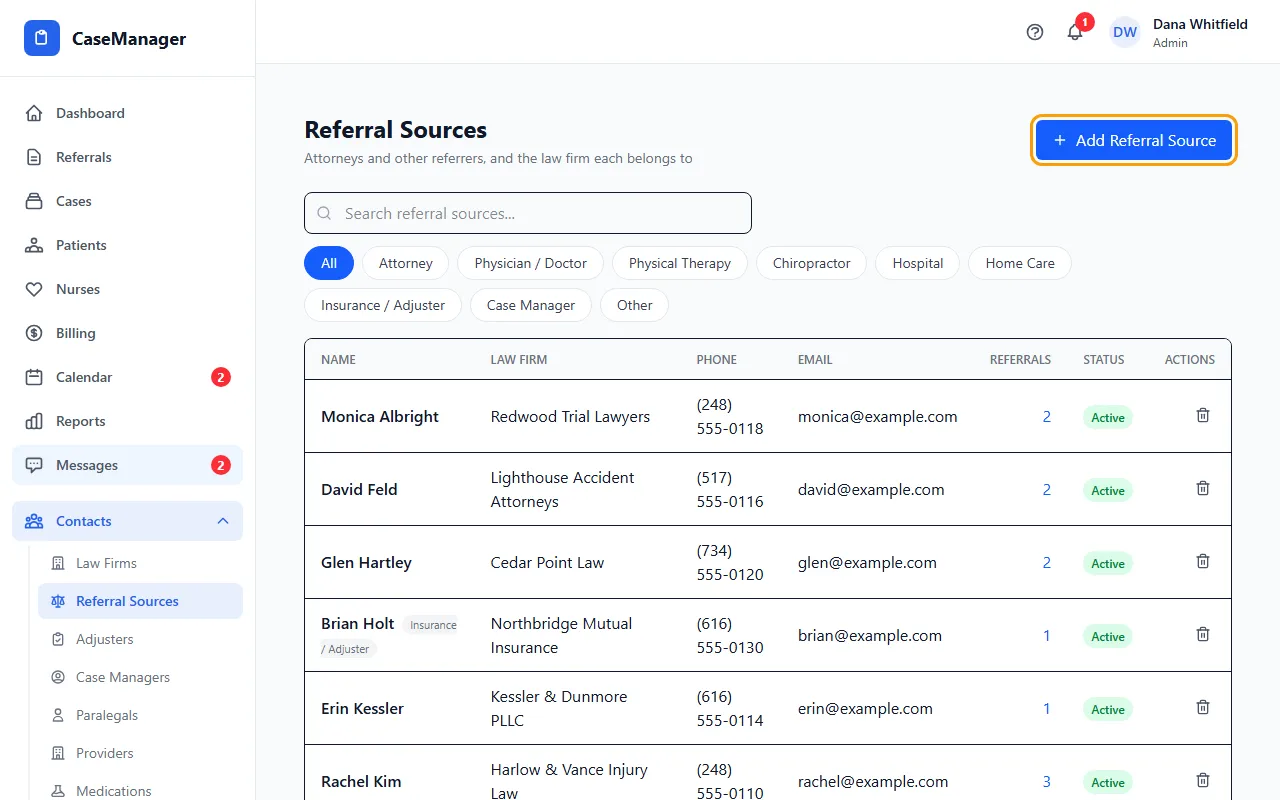
- Enter First Name and Last Name (both required) and choose the Type: Attorney, Physician / Doctor, Physical Therapy, Chiropractor, Hospital, Home Care, Insurance / Adjuster, Case Manager or Other.
- Choose their Law Firm. The office address, phone and fax fill in from the firm, and the email if it's empty. Leave Not linked to a firm if they have none.
- Add the contact details and any Notes, then click Add Referral Source.
Linking people to their law firm
When some referral sources aren't linked to a law firm, a blue box at the top says how many. Linking them is what makes reports group by a real firm instead of a typed name.
If someone's typed firm name exactly matches a firm you already have, the box offers a button to link those exact matches. It shows the list first; click the Link button in that window to link them. Nothing else changes and no new firms are created.
To link one person, click Link next to their firm name and choose from Choose a law firm.... Or click Create with the typed name to make that firm and link it in one step (Admins only).
Finding people
Search by name or firm, and use the type buttons (All, Attorney, Physician / Doctor and so on) to narrow the list.
The Referrals column counts referrals where this person is Referred by. Click the number to open those referrals.
Deactivating and deleting
Click the bin icon on a row to deactivate someone. They stay in the list, faded, and no longer appear in Referred by. Click the circular-arrow icon to reactivate them.
Admins can then delete a deactivated person for good with the red bin icon, as long as no referrals are credited to them.
Internal notes (Admins)
When an Admin opens a referral source, an Internal Notes log shows beside the form. Type a note and click Add. Each note is dated; you can edit or delete only your own.
Referral sources are not logins
Adding someone here does not let them sign in. To give an attorney or adjuster a portal login, see Give a referral partner portal access.
If something goes wrong
- “Deactivate this referral source first, then delete it permanently.”
- Click the bin icon to deactivate them, then use the red bin icon.
- Deleting says referrals are attributed to this contact.
- Open those referrals from the Referrals count, change Referred by with Edit, then delete.