Run referral reports
See referral volume by status, source, urgency and referrer, filtered by law firm, nurse and more, and export it.
Last updated October 22, 2026
Who can do this: Admin, Nurse Case Manager, Internal Case Manager, Billing Staff
Steps
- Open Reports and click Referral Reports.
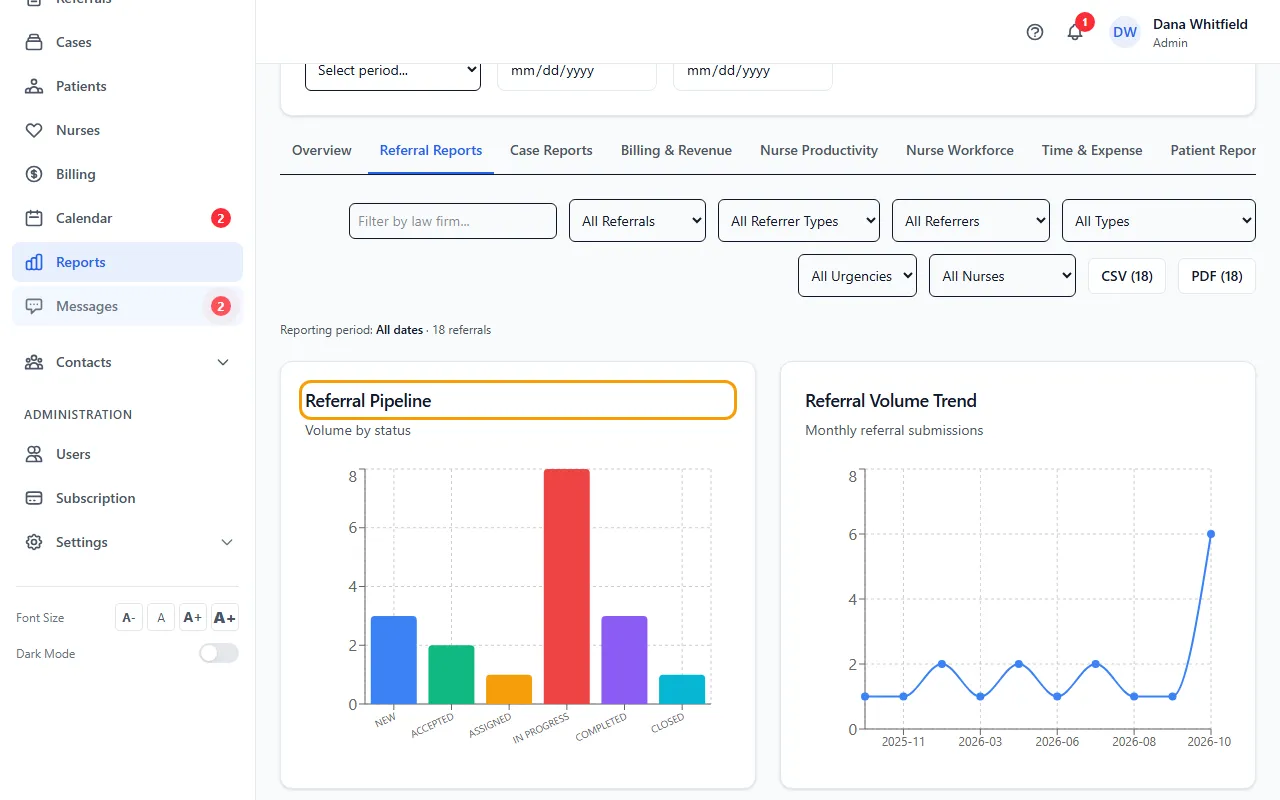
- Narrow the report with the filters: law firm, All Referrals / Active Referrals / Closed Referrals, referrer type, referrer, referral type, urgency and nurse.
- Read the charts: Referral Pipeline, Referral Volume Trend, Referrals by Source, Referrals by Urgency, Referrals by Referrer Type and Top Referrers.
- Click Active or Closed in Referral Summary to show just those referrals.
- Click CSV or PDF to export what you see. Click Clear to remove all the filters.
How the filters work
Every chart, count and export on the tab follows the filters you set.
The law firm filter matches both the firm on the referral and the law office typed on the patient, so spelling variants of one firm are counted together.
Active means New, Accepted, Assigned or In Progress. Closed means Completed or Closed. In Top Referrers, Accepted leaves out closed referrals, which may have been declined.