Your own settings: time zone, contact details and email
My Settings holds your time zone, contact and emergency details, your documents and the email account you send from.
Last updated October 22, 2026
Who can do this: Everyone on your team
Steps
- Click your name at the top right and choose My Settings.
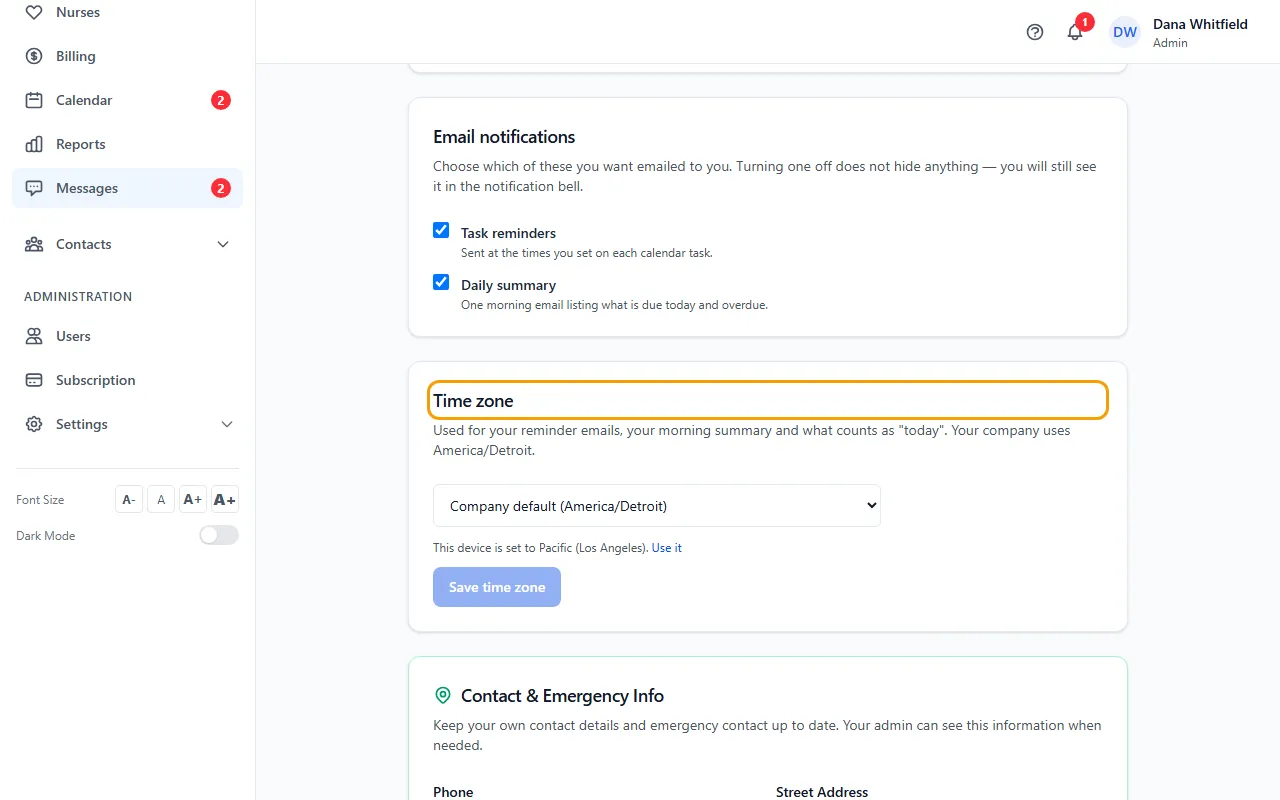
- Under Time zone, pick yours or leave the company default. If your device is in a different zone, click Use it. Click Save time zone.
- Fill in Contact & Emergency Info and click Save Contact Info. Your Admin can see it.
- Under My Email Configuration, choose your email provider, type your login email and app password, and click Save Email Settings.
- Click Send Test Email to check it works.
Why the email setup matters
Forms and documents you send to patients by email go out from the account in My Email Configuration. If it isn't set up, the company email (Administration > Settings > Email) is used. If neither is set up, nothing is sent and CaseMgmt tells you.
For Gmail, use an App Password from your Google account, not your normal password. The card shows the steps.
Also on this page
Profile shows your name, email and role. Ask your Admin to change them.
My Documents is for your license and certifications; only you and your Admins see them.
Contracts to Sign lists contracts your Admin has sent you to sign.
Email Signature adds your signature to emails you write and send from CaseMgmt. Paste it, or use Upload HTML File, then Save Signature.
Your time zone sets your reminder emails, your morning summary and what counts as today. The Time zone card is hidden when your company doesn't use the calendar.
If something goes wrong
- The test email fails.
- Check the login email and the app password. Use SMTP Port 587 with the SSL box unticked, or 465 with it ticked.