Deactivate a user or change their role
Turn off someone's login when they leave, or move them to another role. Their work stays in CaseMgmt.
Last updated October 22, 2026
Who can do this: Admin
Steps
- Go to Administration > Users and find the person. Use Search users... or the role list to narrow it down.
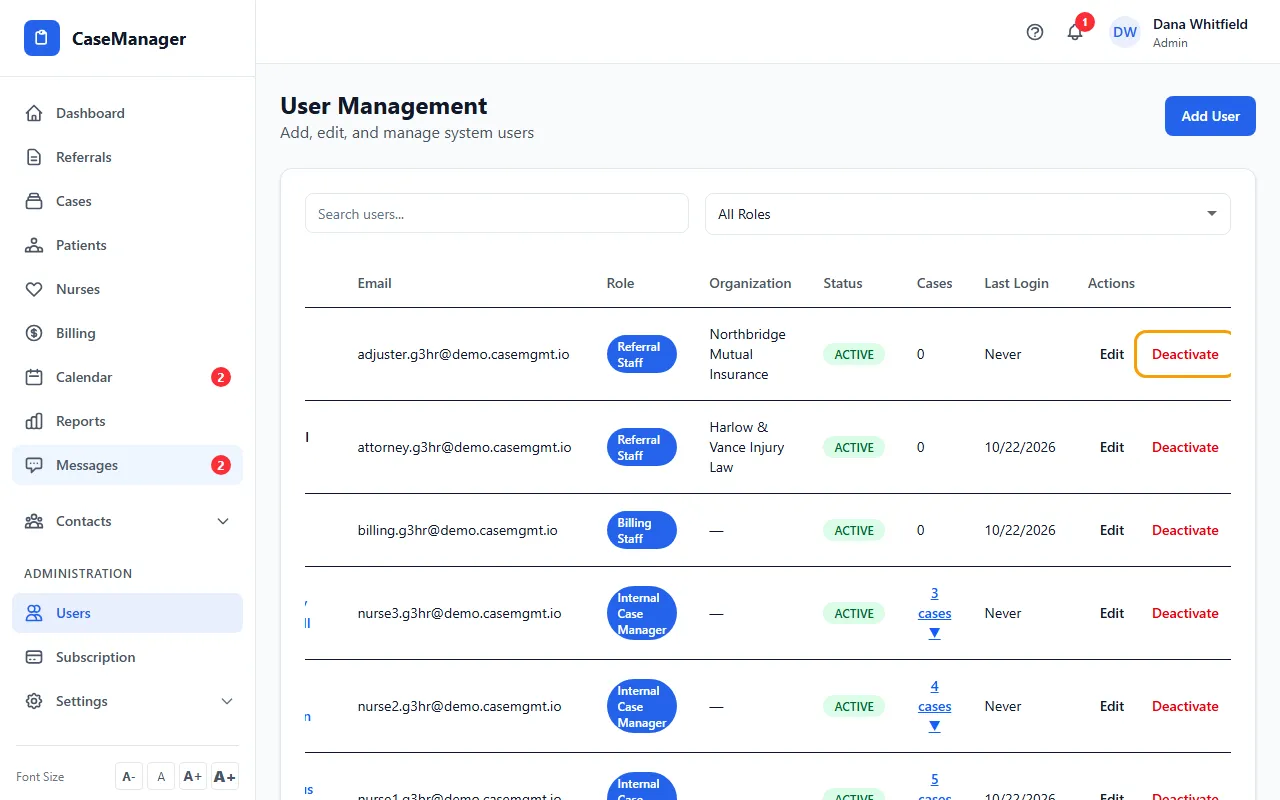
- Click Deactivate and confirm.
- Their status becomes Terminated and they drop off the list. Tick Show terminated to see them again.
What deactivating does
The person can't sign in, and a session they have open stops working.
Nothing is deleted: their case notes, time, documents and history stay on the patients and cases.
They stop counting toward your bill, and your subscription is updated right away.
Turn a login back on
Click Edit, set Account Active to Yes and Status to Active, then click Save Changes. A paid user counts toward your bill again.
Change someone's role
Click Edit, pick the new Role, adjust User Permissions (they reset to the new role's defaults) and click Save Changes. CaseMgmt asks you to confirm because the price of that user can change; a note then shows the new monthly cost.
Status (Active, Draft, Not Working, On Leave, Terminated, Suspended) is a label for your records. Only Account Active decides whether the person can sign in.
Tips
- Only Admins can deactivate.
- Deactivated users also show on the Admin Dashboard under Pending User Approvals. Clicking Approve there turns their login back on, so only click it for someone who should have access again.