Change one user's permissions (and set up a documents-only user)
Tick or untick single permissions for one person, or limit someone to viewing patient documents.
Last updated October 22, 2026
Who can do this: Admin
Steps
- Go to Administration > Users and click Edit next to the person.
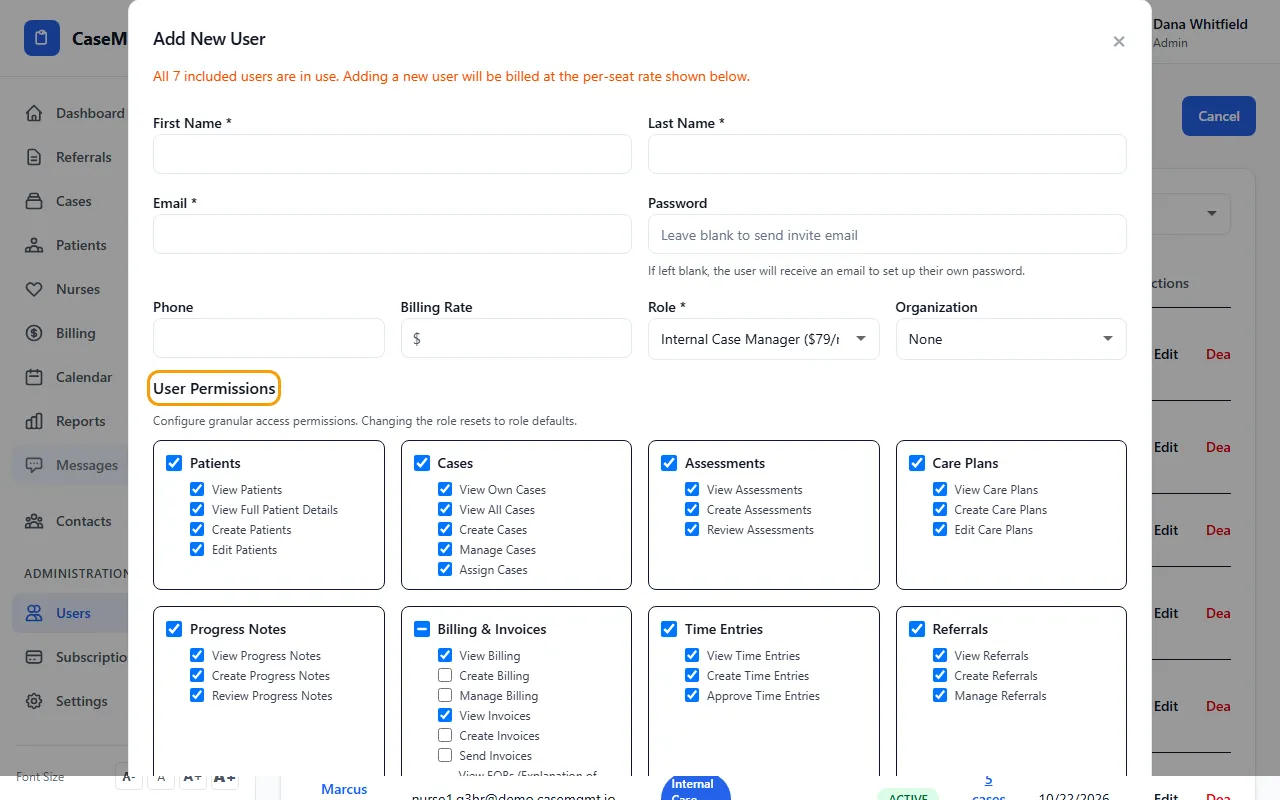
- Under User Permissions, tick or untick single boxes. The box next to a group name turns the whole group on or off.
- Click Save Changes.
Useful single permissions
View Financial Reports (Nurse Workforce, etc.): Admin only by default.
View EOBs (Explanation of Benefits): Admin and Billing Staff by default.
Assign calendar items to other people: untick it and the person can only put calendar items on their own calendar.
Receive escalated urgent alerts: who is told when an urgent alert isn't confirmed in time.
A documents-only user
Untick View Full Patient Details and keep View Patients ticked. That person then sees only Patients in the sidebar. A patient's file shows just the name, the Documents tab (view only) and a Billing tab with that patient's own billed, paid and outstanding amounts.
They can't see Contacts, export a record, reveal a Social Security number or email documents.
To limit which folders they can open, tick folders under Visible Document Folders, or type a name in Other folder name and click Add. With no folder ticked, every folder is visible.
Tips
- Changing someone's Role resets the boxes to that role's defaults, so set the role first, then the boxes.
- A documents-only user is still a paid user at the price of their role.