Set your rates, mileage and payment terms
Set your default hourly rate, mileage rate and invoice payment terms, and choose which service codes print on your CMS-1500.
Last updated October 22, 2026
Who can do this: Admin
Steps
- Go to Administration > Settings > Rates & Pricing.
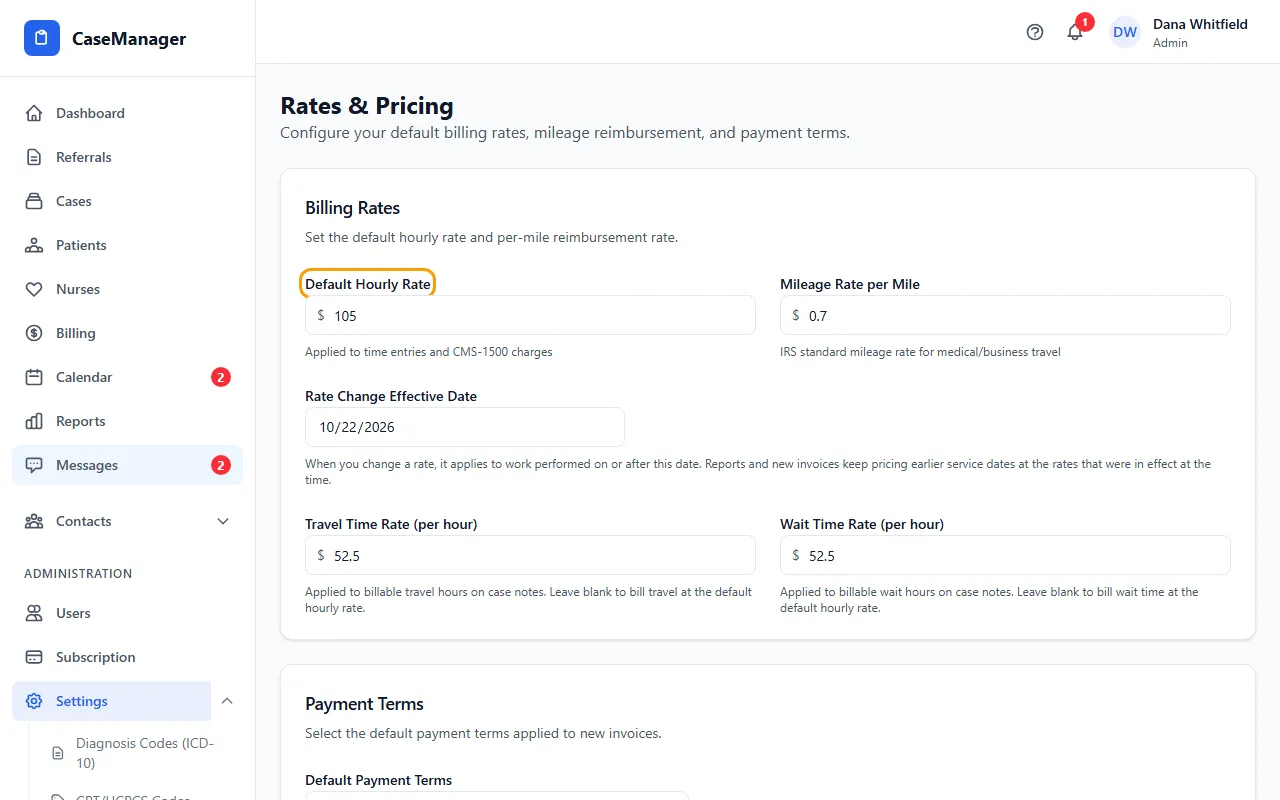
- Enter your Default Hourly Rate and Mileage Rate per Mile.
- If you're changing a rate, set the Rate Change Effective Date. The new rate applies to work done on or after that date.
- Choose your Default Payment Terms for new invoices: Due on Receipt, Net 15, Net 30, Net 45 or Net 60.
- Check the Rate Preview examples, then click Save Rates & Pricing. You'll see “Rates & pricing settings saved successfully!”
Rate changes don't rewrite the past
Reports and new invoices keep pricing earlier service dates at the rates that were in effect at the time.
Travel and wait time
If your company has case note travel and wait time turned on, you also see Travel Time Rate (per hour) and Wait Time Rate (per hour). They price the billable travel and wait hours on case notes. Leave either blank to bill it at the default hourly rate.
Your company must have this turned on. Ask support at admin@casemgmt.io.
CMS-1500 Service Codes
This list decides which CPT codes print on your CMS-1500 and how each line is charged, top to bottom. If it's empty, CaseMgmt uses T1016 for time and S0215 for mileage.
To add a row, fill in CPT Code, pick the Type, enter Rate ($) and Min / unit, and click Add. To change a row, edit it and click Save. Remove takes it off.
Hourly (all time) puts all case-management time on one line; the units are the total minutes divided by the minutes per unit. Mileage charges miles times the rate.
First Hour and Remainder split the time into two lines. They appear only if support has turned them on for your company.
If something goes wrong
- “Enter a CPT code.”
- Type the code in CPT Code before you click Add.