Add a patient
Create a new patient file from the Patients list; CaseMgmt opens a case for them at the same time.
Last updated October 22, 2026
Who can do this: Admin, Nurse Case Manager, Internal Case Manager
Before you start
- You need the Create Patients permission. Admins, Nurse Case Managers and Internal Case Managers have it by default.
- Most patients start as a referral. If this one came in as a referral, use Accept a referral and create the case instead, so the patient stays linked to the referral.
Steps
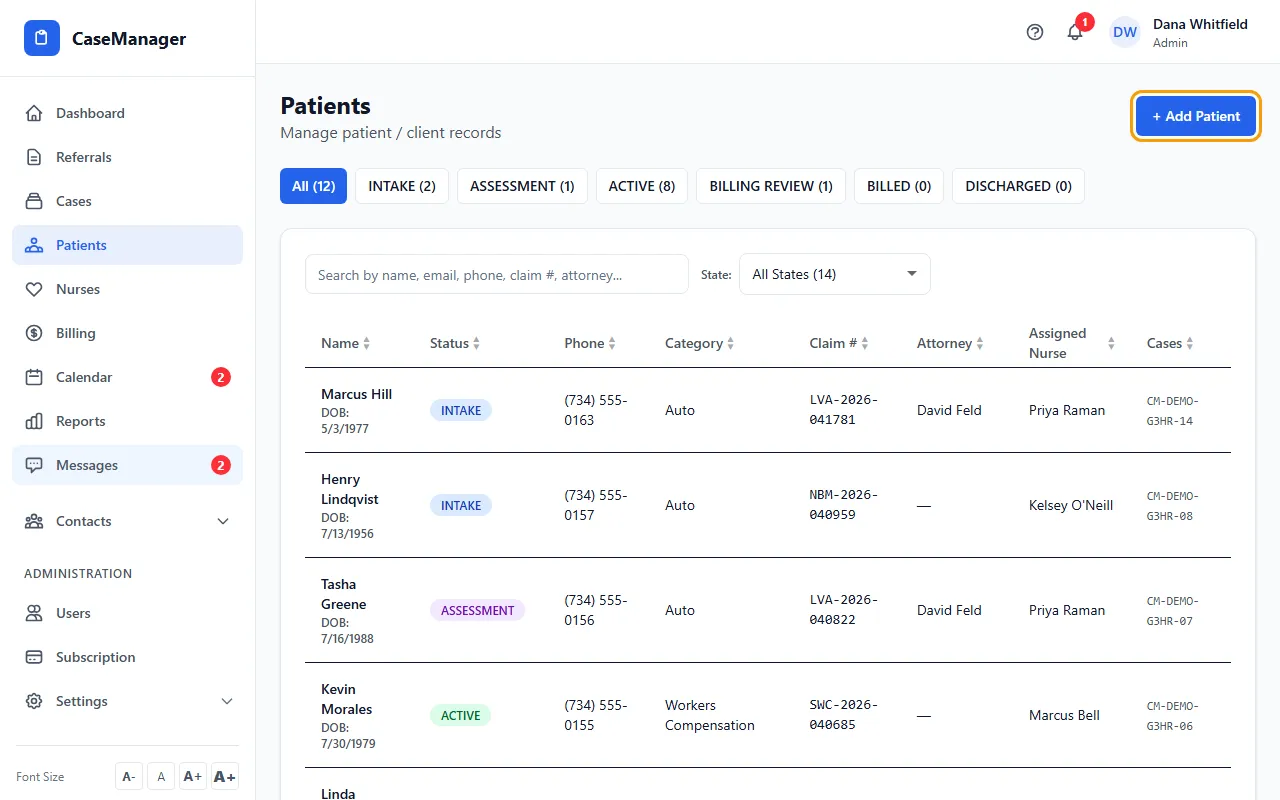
- Open Patients and click + Add Patient. The New Patient / Client Intake form opens at the top of the page.
- Under Category & Status, pick the Category Status (it starts at INTAKE) and Select Category, for example Personal Injury or Workers Compensation.
- Fill in First Name, Last Name and Date of Birth. These, plus the category, are the only required fields.
- Add whatever else you have now: contact details, address, Intake Notes / Main Concern, Important Client Notes, referral source, allergies and insurance. You can fill in the rest later on the patient file.
- Click Create Patient. CaseMgmt creates the patient and a case (the case type is the category you picked), then opens the new patient file.
The duplicate check
Before saving, CaseMgmt looks for patients in your company with the same first name, last name and date of birth (capital letters don't matter).
If there are one or two, you see Possible duplicate patient with the existing records. Click View to open one, Cancel to go back, or Create Anyway if this really is a new record for the same person (for example a separate case).
If there are already three, you see Duplicate limit reached and there is no Create Anyway button. Use one of the existing records.
What gets filled in for you
If you leave Intake Notes / Main Concern empty, it starts with headings to fill in (History of Present Illness, Past Medical History, Current Medications, Allergies, Goals / Plan of Care, Additional Notes).
If you leave Important Client Notes empty, it starts with the headings Appointments, Providers, Key Contacts and Other Important Notes.
Tips
- A claim number typed here is also used as the insured's ID (CMS-1500 Box 1A) until you enter a different one on the Insurance & Claims tab.
- Assign the nurse right away with + next to the nurse names at the top of the patient file. See Assign a nurse to a patient.
If something goes wrong
- “A patient named … with this date of birth already exists.”
- Check the existing record with View first. If it is a different person or a new case for the same person, click Create Anyway.
- “There are already 3 patient records for … with this date of birth.”
- You can't add a fourth. Open one of the existing records. If this really is a different person, check the date of birth or ask your Admin.
- The form shows “Forbidden”.
- Your login can't create patients (Billing Staff can't by default). Ask your Admin.