Find your way around the patient file
What's at the top of a patient file, what each tab is for, and the summary that stays on screen.
Last updated October 22, 2026
Who can do this: Admin, Nurse Case Manager, Internal Case Manager, Billing Staff
Your company can hide the Case Notes, Medical, Insurance & Claims, Notes, EOBS, Communications and Audit Log tabs. They show unless support has turned them off. Ask support at admin@casemgmt.io.
Steps
- Open Patients and click the patient. The file opens on Overview.
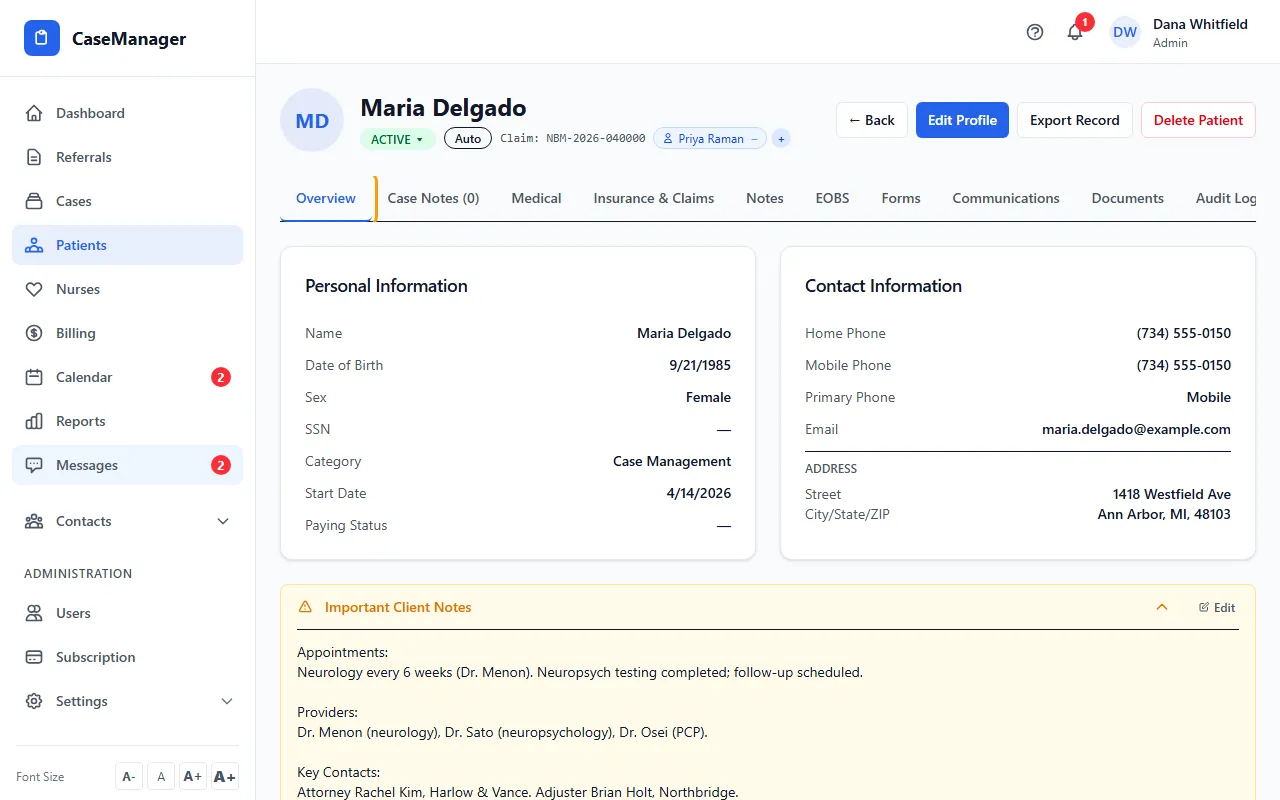
- Read the top line: the patient's name, their status, a badge for each open case type, the claim number and the nurses assigned.
- Click a tab to switch: Overview, Case Notes, Medical, Insurance & Claims, Notes, EOBS, Forms, Communications, Documents and Audit Log. On a phone, swipe the tab row sideways.
- Use the buttons at the top: Edit Profile to change the patient's details, and for Admins Export Record and Delete Patient.
What each tab is for
Overview: personal and contact details, Important Client Notes, the Schedule & reminders card (when your company uses the calendar), Text messages, Providers, the insurance and legal cards, Referral Source, Emergency Contact and a Quick Summary of cases.
Case Notes: the nurse's notes and time for this patient.
Medical: allergies, injury date, ICD-10 diagnosis codes and medications.
Insurance & Claims: auto insurance, legal representation, health insurance, claim, insured and provider details used on the CMS-1500.
Notes: Intake Notes / Main Concern and Important Client Notes in full.
EOBS: Explanation of Benefits notes and paperwork, and every batch this patient was billed on. Only people with the View EOBs (Explanation of Benefits) permission see it (Admins and Billing Staff by default).
Forms and Documents: the patient's forms, signatures and files. See Send a form to a patient.
Communications: staff conversations about this patient.
Audit Log: who changed what in this file. Admins only.
The summary that follows you
On every tab except Overview, a short summary stays above the tab: the auto insurance, legal and health insurance cards (showing only what's filled in, or Not on file), Important Client Notes, and the Schedule & reminders card. Each card has its own Edit link, so you can update them from any tab.
If you only see Documents and Billing
Your login is set up to see documents only. You see the patient's name, the Documents tab (view only) and a Billing tab with what was billed, paid, outstanding and denied for this patient. Amounts are this patient's share, even when a bill covered several patients.
Tips
- Your company can rename the Important Client Notes card. If yours has a different name, it's the amber notes card on Overview.
- If the patient replied STOP to a text, SMS Opted Out shows on the Contact Information card.
If something goes wrong
- A tab is missing.
- EOBS needs the EOB permission and Audit Log is for Admins. Other tabs can be hidden for your whole company; ask support at admin@casemgmt.io.
- “Patient not found”.
- The patient was deleted, belongs to another company, or (if an Admin turned off View All Cases for you) isn't on one of your cases. Click Back to Patients.