Your first day as a Company Admin
Set up your company in CaseMgmt: add your team, connect your email and check your subscription.
Last updated October 22, 2026
Who can do this: Admin
Steps
- Sign in. Your Dashboard opens. While your company is new, the Getting started checklist at the top shows what to do next and ticks itself off as you go.
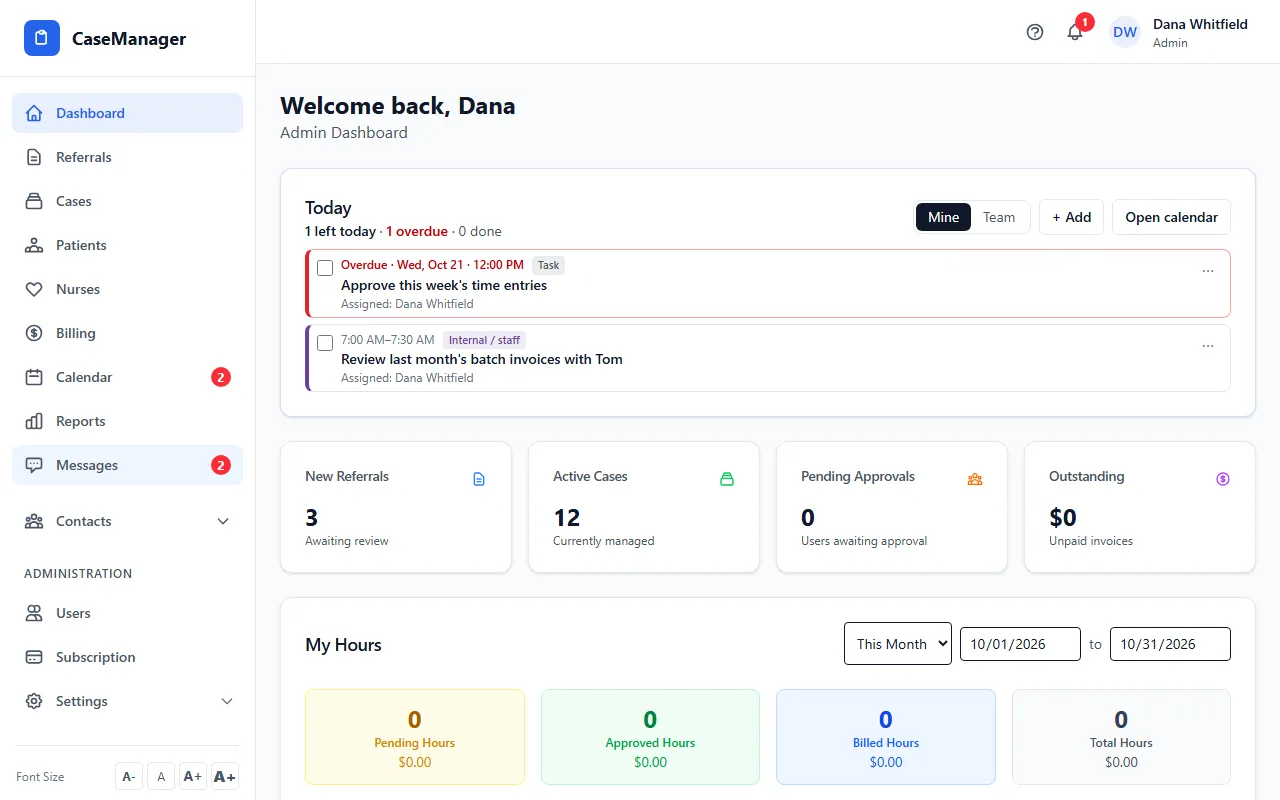
- Add your team in Administration > Users with Add User. Leave the password blank and each person gets an email to set up their own login. See Add a user.
- Give attorneys, adjusters and other referral partners a Referral Staff login. Referral Staff are free and unlimited, and they use the referral portal instead of the staff screens.
- Open Administration > Settings to check your company details before you send your first invoice.
- Click your name at the top right, choose My Settings, and fill in My Email Configuration. Forms and documents you send to patients by email go out from this account.
- Open Administration > Subscription to see your plan, your users and your estimated monthly total.
Tips
- Out of the box, only Admins see Administration. You can make another person an Admin, or tick single permissions for them in Users.
- Set up the company email (Administration > Settings > Email) or ask each staff member to set up My Email Configuration. With neither, CaseMgmt refuses to email forms and documents to sign, and says so.