Use the Getting started checklist
New companies get a checklist on the Admin dashboard that ticks itself off as you set up CaseMgmt.
Last updated October 22, 2026
Who can do this: Admin
Steps
- Open your Dashboard. The Getting started card shows how many steps are done and the next one.
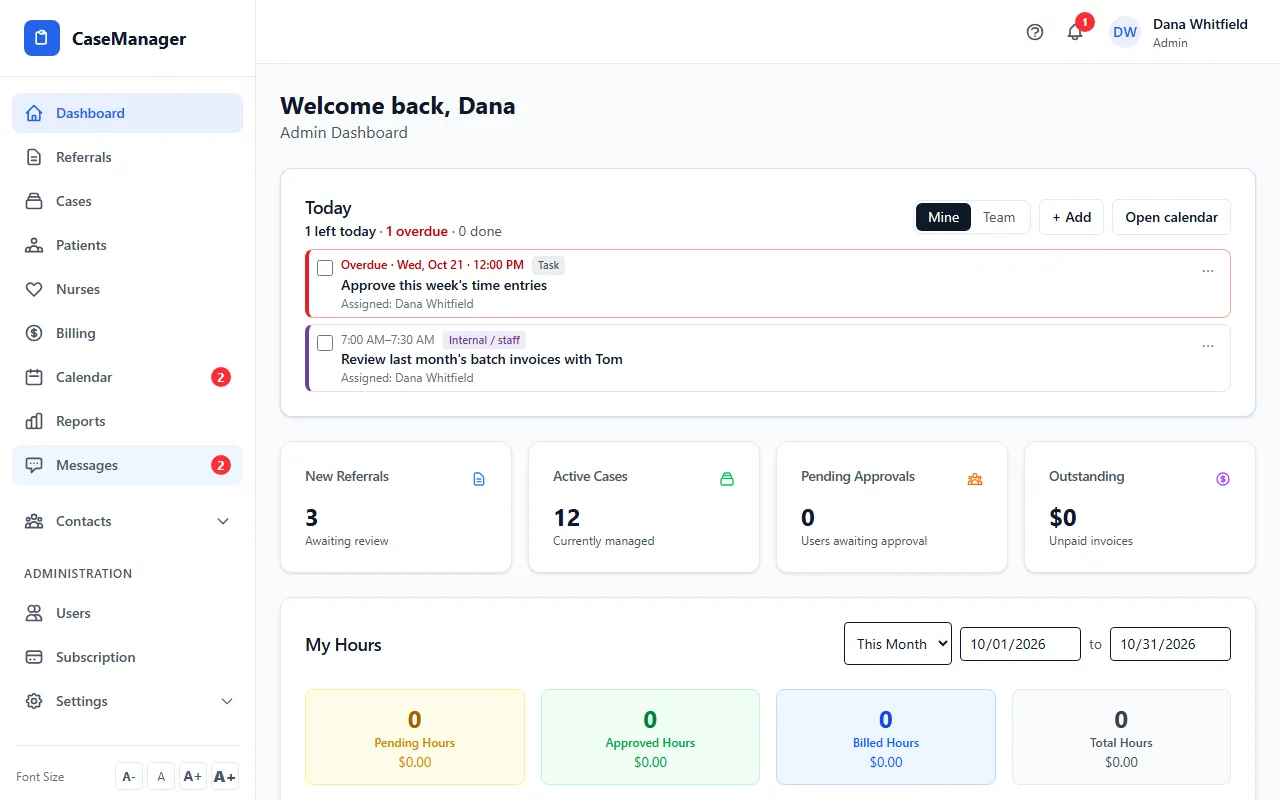
- Click a step to go straight to the screen for it.
- Do the step. The tick appears by itself the next time you open the dashboard; there is nothing to mark by hand.
- When you no longer need it, click Hide. The checklist is then hidden for every Admin in your company.
The steps
Add your team: someone besides you has a login.
Add your first patient and Open a case: at least one of each exists.
Send a form or a document to sign: a form or signature request has been sent to a patient.
Add a task or reminder: something is on the calendar.
Connect your company email (optional): your company email is set up in Settings.
Add a payment method: shown only during a free trial that has no card on file yet. It opens Administration > Subscription, where Add card & subscribe takes you to Stripe to enter a card.
Who sees it
Only Admins, and only during your company's first 60 days. It also disappears once every step that isn't optional is done.
Tips
- Questions while you set up? Email admin@casemgmt.io and a real person will help.