Cancel your subscription
Cancelling stops future charges; your team keeps full access until the end of the period you've paid for, or the end of your free trial.
Last updated October 22, 2026
Who can do this: Admin
Before you start
- Only Admins can cancel. Nothing is charged again after you cancel.
Steps
- Open Administration > Subscription.
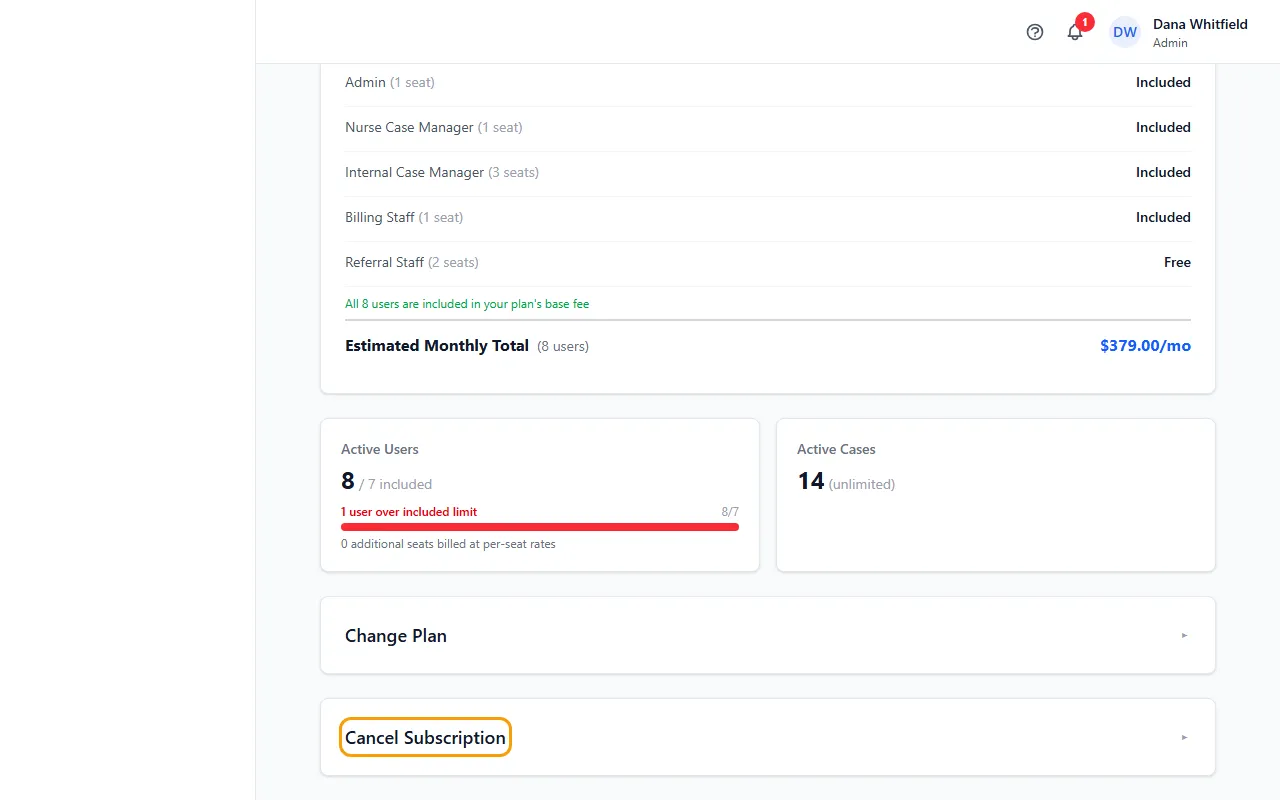
- At the bottom, click Cancel Subscription to open it. It shows the date your access would end: the end of your free trial, or the end of the period you've already paid for.
- Click the red Cancel Subscription button.
- Read the confirmation and click Yes, cancel subscription, or Keep subscription to stop.
- The page now says Your subscription is canceled with the date access ends. Everyone keeps working as normal until then; a yellow bar at the top counts down the days.
Changed your mind?
Before access ends, an Admin can open Administration > Subscription and click Keep my subscription. Billing carries on as before.
When access ends
After that date, CaseMgmt shows Access Restricted to everyone in your company. You can still sign in, and Administration > Subscription and My Settings still open. To start again, email admin@casemgmt.io.
If something goes wrong
- “Your subscription was not canceled: our billing system refused it …”
- Nothing changed and you're still subscribed. Try again in a few minutes, or email admin@casemgmt.io and we'll cancel it for you.
- Keep my subscription isn't there.
- It only shows while access hasn't ended yet and the subscription was set up with a card. Email admin@casemgmt.io.